Command-Q(clickontyler.com) |
Command-Q(clickontyler.com) |
I've loaded the demo version for now, I'll buy once it's in the MAS.
One suggestion- You might want to add an option to add itself to startup; I know how to go to System Preferences and add it myself, but less technical users wouldn't, and it's inconvenient regardless.
Anyway, thanks for making this. Very useful.
As far as App store goes, many programs will never be available on the app store. Customers who think that represents a significant burden and want to write long essays about that are not likely to be the sort of customers you want any way.
I much prefer the App Store these days when it comes to purchasing software.
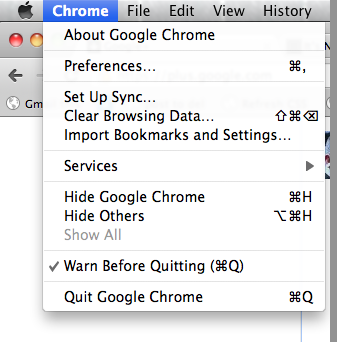
Screenshot: http://paulirish.com/i/fcba70.png
At first I was really puzzled when I read this sentence...Q and W are so far apart on the Dvorak keyboard! ;-)
(There's probably a more generic way by editing your ~/Library/KeyBindings/DefaultKeyBinding.dict, but I'm not sure what the appropriate selector would be)
Of course, these just change the binding, the 'hold to confirm' is quite a nice UI feature.
Edit: The reference I was remembering is http://www.hoboes.com/Mimsy/hacks/disabling-quit-rewriting/ and appears to still work in Lion. Still on a per-app basis though.
It's interesting (for me) that others are doing this too though. I didn't do it because I lost something accidentally - really which apps don't ask you to save important things? - but because I wanted to embrace Lion's hidden Dock lights, which I enabled. If it shouldn't matter if an app is running or not then I shouldn't have to quit so I'm trying to break the habit.
As you can see, it was all committed at once, which is the proper way to develop software.
Like an option in the menu, or something else (not sure what) for people like me who have the menu bar icon disabled.
They don't want you think about quitting applications at all, they want to hide that under the rug.
Making quitting more explicit (like this app) seems to do the opposite of that.
Though I think a better way is just to save all state when quitting no matter what your application does.
For quick navigation of 9 spaces with assigned apps it's probably best to just use Ctrl-1 thru 9. Spacial navigation is pretty much dead between full screen apps and auto-rearranging of the spaces (well, you can turn that off I guess), so I decided to embrace Apple's new idea and see how it works.
First of all, I hated Exposé and never used it. Mission control actually is useful since I can see the apps and organize them quickly (much quicker than with SL Spaces in fact). With the horizontal spaces, navigating them quickly is less confusing, and with auto-arranging spaces it makes switching back and forth between arbitrary spaces a lot easier, sort of like Command-Tabbing.
It's a huge change from Spaces, but for me (using 4-6 SL Spaces) never reached a level of perfection due to the small bugs and unpredictabilities in the system. I'm going to give Apple the benefit of the doubt and see if they can come up with something better. So far there are some real nice touches to Lion window and space management.