macOS Ventura is now available(apple.com) |
macOS Ventura is now available(apple.com) |
- show all windows of an app when switching windows (cmd+tab). currently only one window from each app is shown.
- transition period when switching windows via three fingers gesture is too long. make it snappier.
https://webkit.org/blog/13399/webkit-features-in-safari-16-1...
Web Push won't come to iOS until a mid-cycle release, probably by March, maybe a bit sooner.
Personally I hope they have some sort of scoring to alert people if they are subscribed to notifications that others have reported as being scammy. They hopefully learned from the Calendar spam problems.
It's listed on this page (search for "2023"): https://www.apple.com/ios/ios-16/features/
And yet there is no Apple weather app for iPad!
They're using all software building resources for iOS and then just slap any reusable features on their desktop OS whenever possible. Great when it works for apps that are quite similar (e.g. messages), terrible for things that simply work very differently on a desktop OS (system settings, stage manager is pointless etc.).
Good opportunity for Windows to finally beat MacOS in UI/UX, since they don't have a mobile OS to worry about?
> Good opportunity for Windows to finally beat MacOS in UI/UX, since they don't have a mobile OS to worry about?
Given how much of a step back every Windows release is, starting after Win2k, in terms of *consistency* of the user experience - I would argue both companies are their own worst enemies here.
>Apple wisely takes an ain't-broke-don't-fix-it approach to macOS's standard multitasking model in Ventura by turning Stage Manager off by default and making people go hunting for it if they want to use it. You can't change your Mac's UI in a major way by accident.
If you haven't used it, Stage Manager differs from standard macOS multitasking by offering a column of recently used apps on the side of your screen (it's the left-hand side by default, but it will switch if you've got your Dock set to use the left-hand side of your screen instead). But unlike minimizing or maximizing an app from the Dock, each "stage" can contain multiple app windows from multiple apps; switch from one stage to another, and every window on that stage will pop back up on your screen in exactly the arrangement you were using before.
Within a given stage, app windows work exactly as they do anywhere else on your Mac. You can move, resize, and rearrange them any way you want, including shoving them all the way to the edges of the screen. The recent apps column will persist on the side of the screen by default, but it will get out of the way if you move an app window over it; you can bring the apps back up by moving your cursor to the right edge of the screen.
Stage Manager integrates seamlessly with macOS's other window management systems. Do you still want to use some apps in Full Screen mode? Great—they don't appear in your recent apps tray, and you can access them with a trackpad swipe, the same as you could before. Do you like Mission Control? Also cool. Apps in your tray slide gracefully up into Mission Control mode, along with any open apps that aren't in your tray.
https://arstechnica.com/gadgets/2022/10/macos-13-ventura-the...
If you take away the background, the way that it's arranged feels very AR-y to me.
I tried out uBar for Mac OS https://ubarapp.com/. Too buggy though.
Personally, I leave tons of windows open because I feel no need to keep things "organized". I rarely feel the need to constantly micro manage things that are running because cmd+tab and cmd+` along with mission control/expose/spaces makes it pretty simple to find what I'm looking for. My individual windows go into pretty specific positions and they rarely move, and I also rarely fully close applications.
It does not make a whole lot of sense.
I've been maximizing the windows for every app on the built-in screen since forever. More recently I've been using Rectangle when my MBP is connected to my new 27" screen. It works quite well but the layouts require a bit of nannying, I guess it's just a matter of me familiarizing myself with the keyboard shortcuts.
For my usage/preferences, the Windows taskbar and alt-tab switcher scale extremely poorly. They drive me to keep no more than 3-4 windows open, because any additional windows beyond that make my desktop progressively more difficult to manage which feels utterly absurd on a tower with a 5950X and 32GB of RAM which I should feel empowered to heavily multitask with.
I assume some Chrome product manager is as clumsy as I am (bless their heart), so it will insist you hold down the Q key. If only that was the default.
Keeping the taskbar in its icon only default mode makes it basically like the Mac dock, which isn’t too bad, except that having more than one window open in a program which causes the button to “stack” for each window, then requiring an additional click or an awkward hover-dance to surface one of that program’s windows. If I disable stacking and enable window names, making it like the Win9x taskbar, I get back single click window summoning but the taskbar fills up very quickly and becomes noisy. Either way comes with drawbacks.
Alt-tab scales badly simply because of the sheer number of tab-taps it takes to switch to any given window when you have more than a handful of windows open. Without any logical grouping (like with macOS Command-Tab app grouping), it gets too full too quickly.
Windows also lacks a universal shortcut to cycle through only windows of a single application (Command-` on macOS) which I often miss.
Windows has great window management = less chaos, less orphan open windows Mac OS has inferior window management = chaos, hundreds of open windows
The main reasons stems from the fact that Windows open window discoverability is higher. Open windows are always displayed in the menu bar. MacOS only displays the app icon but provides no information about the open windows except for pressing F3.
I hope that answer makes sense.
This theory makes little sense.
The right click Mac OS solution is the best example. By default, right click on MacOS is deactivated. Even if someone right clicks on an app icon, that person has to click AND process the titles windows instead of seeing a visual preview as on Windows of the window.
That’s why this is all armchair designery about pet issues. You may like the way Windows works, that’s fine. But that doesn’t mean MacOS works ‘terribly’. It’s mostly just different from what you’re used to.
Nobody said that macOS has "terrible UI". Some people expressed that the window management in MacOS is inferior to Windows. I laid out UX reasons why macOS window management is inferior to Windows.
I will not participate in further discussion.
What I didn't know, is that you can hide "Recent Apps" (the app thumbnails on the left) in System Settings. It supplements Mission Control & Spaces, and makes it quite easy to switch between apps. You can also group multiple windows together to switch to them in one tap. Pretty neat.
https://forum.parallels.com/threads/did-anyone-else-on-17-ge...
I'd love to be able to set, say a "Programming" Focus, and have everything else disappear: All my desktop spaces would change, including their wallpapers (replaced by the Matrix green rain) and only the apps that I allowed would be visible, and even the files/folders and websites which I didn't include in that Focus should not be accessible (from the GUI or Terminal at least).
Basically it should be sort of like logging into a different user account, without logging into a different user account (i.e. keeping all your data and state, just temporarily filtering it).
In fact I think all operating systems should adopt the notion of a "focus" as a fundamental sub-level under the user account: Bob may have a social networking focus, office focus, or no focus, and so on.
There's quite a lot of stuff in macOS (iOS and iPadOS too!) that's surprisingly scriptable.
I laughed in real life.
https://eclecticlight.co/2022/10/04/how-to-keep-monterey-whe...
[1]: https://apps.apple.com/us/app/msgfiler/id418778021?mt=12
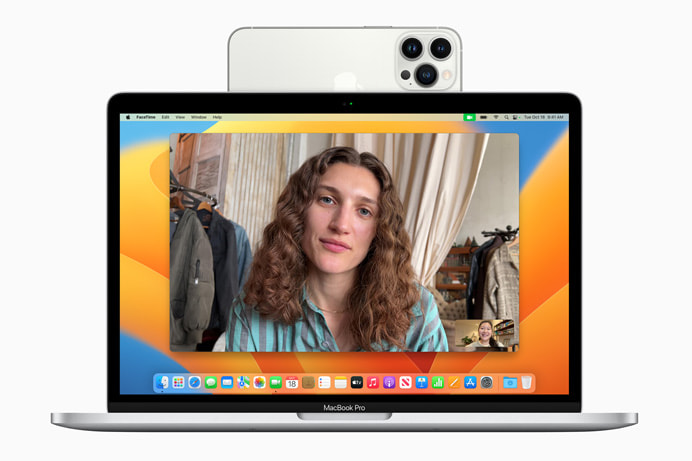
> With Continuity Camera, Mac users can leverage the powerful camera system on iPhone to unleash a groundbreaking webcam experience
I don't have the energy to parse a lot of text like this...
That part looks correct to me?
I don't have an iPhone to compare, but my phone is easily half the size of a 14" MacBook Pro when placed like that... and Google tells me that some iPhones are basically the same size as my phone.
https://www.google.com/amp/s/time.com/42322/steve-jobs-chill...
When Lockdown Mode is enabled, some apps and features will function differently, including:
Messages - Most message attachment types are blocked, other than certain images, video, and audio. Some features, such as links and link previews, are unavailable.
Web browsing - Certain complex web technologies are blocked, which might cause some websites to load more slowly or not operate correctly. In addition, web fonts might not be displayed, and images might be replaced with a missing image icon.
FaceTime - Incoming FaceTime calls are blocked unless you have previously called that person or contact.
Apple Services - Incoming invitations for Apple Services, such as invitations to manage a home in the Home app, are blocked unless you have previously invited that person.
Shared albums - Shared albums are removed from the Photos app, and new Shared Album invitations are blocked. You can still view these shared albums on other devices that don’t have Lockdown Mode enabled.
USB accessories - To connect your device to a USB accessory or another computer, the device needs to be unlocked. Configuration profiles - Configuration profiles can’t be installed, and the device can’t be enrolled in Mobile Device Management or device supervision while in Lockdown Mode.
Phone calls and plain text messages continue to work while Lockdown Mode is enabled. Emergency features, such as SOS emergency calls, are not affected.
seems like a bug, weird that it didn't get picked up before GM as it was also noticed during the beta: https://developer.apple.com/forums/thread/712858
Some discussion of it from today, but no definitive answers yet https://forums.macrumors.com/threads/strange-safari-open-tab...
- I never want executable content sent to me via messages.
- I already block web fonts everywhere I can. I do want to know what other "complex web technologies" are blocked.
- I don't care about Facetime.
- I don't use Apple services or Icloud.
- Ignoring USB when locked should be a default.
JIT compilation, WASM, WebGL, Speech Recognition API, and the Web Audio API
And if you plug your laptop into a docking station while the lid is closed...?
Apple said at the rollout that relatively few people should need this, which is likely correct. The vast majority of people don’t have a state-level attacker going after them.
Also it makes sense that the UI/UX is accessible; many of the people who need this aren’t necessarily tech experts. And even if you are a tech expert, you don’t want a complex UI when you’re under attack.
{
state-level attack
targeted attack
mass targeted malware/rootkits
}
If it works some of the time for state-level, it should work almost all of the time for anything below.
[1]: https://www.apple.com/shop/product/HQ642ZM/A/belkin-iphone-m...
  -Update available, wanna install?
  Sure
  -OK don't mind me I'm gonna need a while
  OK
  -HA HA I LIED I"M READY TO TERMINATE EVERYTHING BYEEEE
  WTF
  5 reboots with just an Apple icon and a progress bar
  The progress bar also moves backwards sometimes
  I guess it's a metaphor for life, which is how long this seems to be taking
  -OK hello I am back but I need 10 minutes of alone time
  -Here is some unfamiliar wallpaper but you can log in I guess
  -Oh it's you again, do you want to share analytics with us
  -OK here is your familiar desktop, I am not telling you what has changed
  Um preferences
  -Oh hai I'm called Settings now and I reorganized everything
  Yikes but OK this is sorta well laid out I guess
  -Hello I am Stage Manager, I put a desktop on your desktop so you can work while you work
  Sorta neat, can I configure some things differently though
  -No
  [hours later]
  -Ha ha just kidding of course there's a feature tour do you want to see it now
  Hmm OK
  -Have you ever wished I was a phone? (8 slides)
  Really? Let's have a talk about Preferences
  -They are Settings
  OK, let's have a talk about Settings
-NoOh good. I find it by typing "settings" 100% of the time because I can never remember what it's called ("System Preferences", evidently) but that works less-well than it might since that's not the name—it doesn't fully match until I've typed the whole word.
Windows, on the other hand, generally does incremental upgrades.
I used to game weekly with my friends, and because of the above problem, I would have to turn on my computer the night before and start the update so I would be able to reliably play a game the following day - otherwise, there was an extremely good chance that they would start gaming at 8pm and I wouldn't be able to join until roughly 10pm due to the Windows updates.
At the time, this was Windows 10. I eventually just switch to an old Xbox (ironically, still Microsoft), which was far more reliable (although XBox updates take forever too), because we could cross-play Apex Legends. But that is an 8 year old XBox One and it finally has crapped out on me.
I'm currently finishing up getting parts for a new PC build, which will have Windows 11, and I really dread it. I wish Apex was for Linux because I just want to have a Linux-based gaming environment.
--
Anyway - all this to say... macOS major updates might be slow, but they happen so infrequently, that it's not nearly a big deal. Minor security patches are almost never that slow for me, especially compared to Windows.
[0] https://eclecticlight.co/2022/03/19/explainer-macos-updaters...
My MBP took 10 mins to update earlier. That's fine.
So that’s why parallels kept throwing up the password screen while updating the last beta. I guess the VM can’t autologin and I was about to give up thinking it was permanently stuck in reboot
All I want is to hit Command-F to quickly search the filenames in the current folder (not start a sluggish scan of my entire hard disk). There used to be workarounds for this, but then they removed "Find by Name..." from Finder just to make our lives harder. Does anyone know a workable alternative?
It turns out the `scp` has been updated to use sftp protocol since OpenSSH 8.9 and Synology seems to use a different port for sftp, causing some hard to understand errors.
https://lwn.net/Articles/835962/ for context.
This applies to Ventura, Windows 11, Android 12, and iOS 16. I tried updating to some of these, only to regret it later and downgrade.
Also, scp was in fact broken, and they fixed it by changing it to use the SFTP protocol under the hood.
I have a MBA M2 going USB-C -> HDMI on a 4k Dell monitor. You can open and close the laptop and it switches the external from secondary to primary and back almost instantaneously.
I'd describe this as a major improvement over every prior MacOS.
Did this _not_ work on the same M2 laptop while on Monterey?
(I've had this on Monterey from the beginning on M1 MacBook Pro)
But the toggle between the modes had been this slow experience that seemed similar in delay to switching resolutions.
Now it is this blip—-this is your main display, and you can toggle it if you rapidly open and close it, which I can’t really recommend except to cement in your mind that this is the new normal.
It seems wholly different.
Have no idea about ventura, will not update before first patch, I guess.
There's no built-in way to do it.
Stage manager seems like a half measure to introduce better window management in macOS and it doesn’t help that it doesn’t support a keyboard only workflow, from what I can tell from the demos.
Coming from i3wm, I found Yabai to be an excellent keyboard-first window manager. I do wish something like Yabai was built into macOS.
https://www.kolide.com/blog/the-security-and-it-admin-s-guid...
They’ve been listing it as a Ventura upgrade, and all the marketing (more or less) points to this as a Ventura-and-later feature, but it’s on Big Sur and Monterey too.
Supposedly if you install the original SSD it will update some firmware somewhere and you'll be able to use the 3rd party SSD after that. But, like I said, mine's broken. You can supposedly also buy a used genuine SSD off eBay, but that seems a slightly expensive way to do a free OS upgrade.
Interesting story, Apple will not sell you a replacement or upgrade SSD for your 2013 Mac Pro - not for any price. They're only available for warranty replacements, and these computers haven't been under warranty for a long time.
Another thing I assume is still not fixed: The ability to permanently disable VRR for monitors that don't behave well with Apple's VRR implementation. That one's been annoying me with Monterey on my work laptop. Every time the computer sleeps, it turns VRR back on, and my screen blinks and flickers away until I manually turn it off again.
Also you can still update that Mac Pro of yours to Monterey if you use the Open Core bootloader. It just requires going off the beaten path.
I mean, Apple was making new versions of macOS that supported the 2013 Mac Pro until literally today. If that's their playbook, they're not doing great.
Now there's a nothing burger sentence to start us off.
So, ground level?
This stuff was noticed months ago: https://news.ycombinator.com/item?id=31669950
Some bugs probably will be fixed in the upcoming patches. Some will not.
- Settings app has a lot of weird bugs and performance issues. After a restart I have to wait a few minutes before the Settings app actually functions. Overall the Settings app has felt like a step back in terms of UX and performance
- Lots of weird issues with Docker (might be on Docker's side though)
- My screen goes black after disconnecting my external monitor and requires a restart to fix the issue
- Strange networking issues
I'm flabbergasted that Apple's latest UI struggles to beat web apps not just on design (RIP Aqua), but also performance.
Also, it seems to think - for a few moments after every restart - that my Wifi connection is to a hidden network, when it actually isn't. Welp.
Thanks for the heads up on this
None of the changes are life changing but oh well, isn't often a desktop OS really surprises me with something new these days. Hopefully it is as stable as Monterey was for me which didn't have a single crash in the whole year.
Stage Manager is interesting but a very minimal effort by Apple. They really need to work on better overall window management in macOS. Snapping and tighter keyboard management for moving and resizing windows is badly needed. Either that or they need to relax their accessibility restrictions for apps so that we can get some good third-party options without needing to disable SIP.
Overall it seems to be mostly quality of life improvements, a few related to their primary services (such as Photo Library sharing) which will obviously be handy for up-selling iCloud/Apple One paid upgrades.
I am interested to see the new virtualisation framework stuff. Wondering if things like Distrobox (podman) can make use of it.
It would be nice to have this feature natively though.
I would love to see a full manual or dynamic tiling window manager for macOS that didn't require disabling SIP like yabai does and wasn't super janky.
There does seem to be a dev working on porting over the OS if anyone has an earlier mac and really wants the new OS.
(Concerns about potential VirtualBox issues held me back though I suppose I can/should at least upgrade to Monterey now.)
Apple Color Emoji
Version 18.0d4e1
Glyph count 3 574
I thought it was only able to run ARM VMs which can _utilize_ rosetta to run x86 code?
https://developer.apple.com/documentation/virtualization/run...
  Error: Your Xcode (14.0.1) is too outdated.
  Please update to Xcode 14.1 (or delete it).
Xcode can be updated from the App Store.Apple released a security update for iOS 12 a couple of months ago [2], an operating system released a little over 4 years ago. I think you’re good.
In short, this upgrade is simply an hour or so of annoyance, but Apple is Apple. You take the good with the bad. I have a dream - which will never happen - of a "MinMac" setting on install where you just get the least amount of cruft possible.
The flat look and feel is exactly that.
I've never been enthusiastic about Apple's annual upgrade schedule for macOS, biannual was far more comfortable. When responsible for users' desktops, I tend to wait for months after at least .1 is released and even then only start with one lucky user for weeks of trial period, and I do the same with application updates. Invariably, users ask for upgrades, and I make them tell me what new features or security enhancements they can't do without, and that usually calms them down.
At home, I'm still holding out on 10.14.6, but this old mini is only supported up to 10.15.7, so I figured I might as well freeze upgrading on Mojave so I can still run legacy 32-bit software if I want it. I may even downgrade to 10.13 so I can build Basilisk II and other 32-bit only software, but I suppose I can still use binaries, so not absolutely necessary. I just don't need new hardware yet, so I have the luxury of waiting until after Apple stops selling M1 minis. They're so reasonable to begin with, my hope is they can soon after be found for a song. I really want a 2018 Mini, also, but they'll take longer to come down in price, unfortunately and for no particularly great reason.
Now, my mini mirrors our cloud data locally for backups, and as such every user is signed in, and one way of doing that is simply a remote desktop and "switch user". It's cumbersome, and i wish it would just "magically" synchronize data once the user had registered on it, but it only needs to be done every time it restarts, which is when i new patch/version is released.
Anyway, i clicked "switch user" and poof lost connection. Following tries gave an "invalid desktop size 0x0" error, or it simply produced noise on the remote desktop window.
Logging in the user directly through remote desktop worked, but just be aware there may be dragons.
I kind of want to play some old school windows games, but I don't want to pay for parallels.
When performing a search:
Search the current folder
defaults write com.apple.finder FXDefaultSearchScope -string "SCcf"Use Alfred; I've been using it for years (10 maybe?) -- solves this problem and is extremely useful in general
¯\_(ツ)_/¯
Tip: Use the Help menu to search menu items. I just pressed ⌘? and typed "Find" and Find by Name… popped up.
Thank you for showing me that menu command! That'll be a lifesaver going forward. Usability achieved despite Apple design, not because of it.
Damn, been using macOS for 9 years now and just found out about this :o Thanks!
I wrote my own solution using fd + sqlite + fzf but it's nowhere as fast as Everything, and it also requires me to focus the Terminal to use it.
Don't know if it works on Ventura, not upgrading until I know.
How did one dev managed to achieve what, apparently, no corporate entity ever has?
But then again, they will almost certainly screw it up, given that Windows Search still can't search my start menu reliably without pauses. And their history with acquisitions and integrating tech isn't very good.
How it catches all file writes to update that index near instantaneously, I have no idea.
The search interface in finder has a builder for predicates (start a search then hit the plus on the right side of the search bar). There you can start to see some of the friendly prefixes for filesystem items such as extension:, kind:, date:, tag:.
You can also see the mass of file specific metadata - like width, audio bit rate, city, genre.
I have not, however, found a handy way to translate between English description, friendly prefix, and the internal query names like kMDItemContentType.
Fun aside - some of these used to work in the Mac app store - for instance, you could search for listed applications which could open exotic document types.
The "uselessness" IMHO is mostly in that it exposes the most simplistic interface possible, and people just don't know where to go from there (other than terminal users going `man mdfind` I suppose). That gap is only widened by how different it is from other filesystem-based mechanisms for power users, which have more established commonalities like regex and filesystem globbing.
But I still use both, because Raycast doesn't support "folder search". I use folders in general because they don't change, and I usually know what I'm looking for. It (should be)/is also faster than searching all files.
When I'm looking for a file or it's contents, I'll fall back to spotlight
• Finder -> Preferences -> Advanced -> “When performing a search: Use the Previous Search Scope”
• On any Finder window, CMD-F -> Search: This Mac / [ FolderName ]
• On the loupe: “Filename” instead of “Everything”
Enjoy
I moved back to Windows a couple of years back. Spotlight is the second thing I miss most from macOS, with the first being Preview.
(https://news.ycombinator.com/item?id=33321000)
There seems to be two kind of searching people do. Some people want a search tool that searches in documents. Some people want a search tool that searches filenames.
Everything search is exclusively the second. I think I can count on one hand the number of times I've wanted to search inside documents in the last 10+ years (and for those cases, grep has worked fine, even on windows!).
For some reason, searching inside documents seems to be the default for both windows and os x search, and it's super annoying.
A Spotlight search never starts a scan of your disk. The disk is always fully indexed and returns results out of the index very fast. The only exception is typically when the system is updated (or some other big event) and it reindexes everything.
That being said, as others have pointed out, there is a setting to make a Finder window search apply only to the directory in the current window.
The only way to fix it is to do some command line mumbo jumbo like rebuilding the Spotlight index and deleting index folders.
But maybe that more nostalgia than actual memories ;)
I use it all the time to run binaries. For instance, "cmd-space mail". I wouldn't know the names of the files I want to search anyway.
Terminal and /usr/bin/find
https://github.com/sharkdp/fd#installation
assuming you are "in the current folder" in the terminal...
find . -type f -name “somestring”
but yeah that seems like more typing than one might want compared to a simple text entry field in the GUI.
(But your "find" will search in and below the current directory for files that exactly match "somestring".)
But after adding support for it in my rcmd app (https://lowtechguys.com/rcmd), and tuning yabai's grid a bit, I found it quite useful for my workflow.
Here's a video on how I use Stage Manager with the keyboard shortcuts in rcmd, if you'd like to see if the same workflow would be useful for you: https://youtu.be/dlwjSf7aIy8
I'm also giving out some promo codes for rcmd to give people a chance to try this functionality and see if they like it:
*previous codes redeemed*
    RHKWKLML7YHA
    9HL7XALHANL6
    XP7N6N7PFJRP
    AWA37JJLA9LJ
    3FR6JR4LPPAF
    93TFMMX6KM6M
    7K4YLM6H3P6E
    36MWRHWF7TM7
    RTM9HEEAHTA7
AEMNXEX6WFPKps: I used the YP33H9AP9NFH code, so try the other ones.
If they focus on stability, everyone says, "Not enough new features to be worth the upgrade".
I guess no one can be happy. Or they expect a ton of new instantly stable features...
Which is sorely needed.
Because honestly I’m afraid of paying $12 to $24 per device per employee and per month for an SSO+MDM solution that would make me depend on a dodgy Windows-style UI (Jamf) or worse, all my employees’ ability to login would depend on Okta.
However, since you aren't really missing anything in terms of new features, it also doesn't hurt to wait for a couple point releases to let other people find remaining bugs first.
I’ve been on the betas all summer; Continuity Camera is probably the most Apple-like feature in Ventura. It seems almost magical in how it “just works”.
What? Finally!
Safari, Mail, Messages, Photos, I don't use any of it. So couldn't care less about that. This is not an OS update but a list of app updates. Other than that it's mostly window dressing. Some tweaks to settings and a new stage manager thing to replace the launcher thing that I also don't use.
What intrigues me is the ios webcam support and the fact that they use mac book pros without a notch in the mockups of that. Yay to no notch. But does that mean they are removing the web cam in future macs? Kind of relevant because I have an Android phone and no interest in switching to IOS. And I do use the webcam. If not, what's the point of this? Maybe they should just put better cameras in their screens and laptops? Also, what holds up the phone here? This looks very gimmicky to me. Anyway, absolutely nobody I know uses Facetime (I live in Europe, just not a thing here; same with iMessage) and I bet it doesn't work outside of that. I use macs at work, so things like Zoom, MS Live, Meets, Webex, etc. are where I use a webcam.
So, short, stage manager thingy, spotlight tweaks, some deckchair rearranging in the settings and metal 3.
(Reduced motion iirc, I don’t have my Mac with me now)
This keeps the workspace nice and clean
For switching apps, either cmd-tab or cmd-` or with Alfred App
Indeed, for moving windows to left/right/etc, you may need an app like Rectangle
You _could_ add custom shortcuts in Settings - Keyboard for menu items like Zoom or "Move Window to Left Side of Screen" but it's a bit limited.
What is missing? I guess some people like live preview in cmd-tab, but I've been ok without it.
For those on Windows, there is an equivalent app called bug.n that mimics dwm.
  Cmd-Tab -> switch apps, in most recently used order, keep Cmd held down and repeatedly tap Tab to cycle though the switcher bar
  Cmd-` -> switch windows of current app
  Cmd-H -> hide current app
  Cmd-Opt-H -> hide other apps
If you want more options, try Alt-Tab app: https://alt-tab-macos.netlify.app/
This is bullshit. Think about all the PR they have about eco-friendliness, yet they do this
It's all a matter of perspective. :) I love the ability to use my phone as a webcam.
I think that most would be surprised to see a company selling a laptop for $1700 (CAD) in 2022 with a 720 webcam
https://www.apple.com/ca/macbook-pro/
Doing this, then advising you can use your phone's camera seems like an ugly hack.
It is also really awkward to be on a conf call using your phone as a webcam, then needing your phone because something important has come up.
https://smile.amazon.com/Continuity-Ventura-MagSafe-Laptops-...
Or $19:
https://smile.amazon.com/Continuity-MacBook-Compatible-Magsa...
They work quite well with the Magsafe iPhones.
Seriously, back in the days John Siracusa would dive into internal details. For example in 10.7 Lion (in 2011) Apple introduced full disk encryption. John didn't just stop at the usual description of the functionality, screenshots and performance metrics. He described Apple's then-new logical volume manager implementation to get this feature to work. He then speculated on Apple's future plans for the technology (pooled storage aka a single logical volume group spanning multiple physical drives) which became the reality in 2012 with Fusion Drive. This is the kind of review I wanted to read.
'Oh people don't like looking at long documents' - then they're not your target customers and you should just ignore them and stop listening to the ad sales person who is paid by commission.
I recommend the excellent EclecticLight blog (by H. Oakley). He doesn't try to do a comprehensive overview (you have Ars for that), but has done many technical deep-dives covering changes that haven't been talked about anywhere else, and I can't praise him enough for that.
Michael Tsai also has a great blog (mjtsai.com/blog/) that functions as a news agregator for Apple stories and commentary, and though his blog's not dedicated to only macOS, you'll find regular stories on technical details there.
(I miss John Siracusa's reviews for ArsTechnica)
> My personal 2016 mbp has nearly identical specs to my work 2017 mbp but my personal one is being left behind.
This is actually probably my most favorite desktop computer I've ever owned. It's beautiful, and thanks to Intel's mediocre progress over the last decade, it's actually still pretty fast in all but the graphics department. Even still, it can play some modern games on low to medium settings just fine!
But yeah, the new Apple Silicon laptops are incredible, and I'm happy with the new purchase. If I get 8 years out of this one too, I'll be more than happy. To me, that's a reasonable length of time to support OSes on old hardware.
Short answer Large number of users don’t use folders to organize their files. They just depend on searching everywhere to find files that may have dropped in any random location. Those people are less likely to find the setting that makes current folder the default search target.
"This version of Finda (629.0.0+df7956) is not compatible with your operating system version (22.1.0). Press Enter to download the latest version or Command+ to quit."
EDIT: e-mailed the Developer, beta release coming tomorrow...
With Windows, it is death by a thousand paper cuts. With Linux, you might get your arm chopped off while getting every device (or sleep) to work flawlessly, but once it works, it stays working. And small things like search work like you expect them to.
If you want to search documents you have created, I can imagine that you may not use the feature much. But e.g. for research papers, the downloaded copy rarely reflects the contents/authors, so it is really handy to be able to search the contents.
> For some reason, searching inside documents seems to be the default for both windows and os x search, and it's super annoying.
Weird. For me windows don't seem to search inside documents, or at least not in all documents.
For example Photoshop (and its colleagues) is darn near impossible for me to use on Windows — and at least 50% of the reason is absence of the "Help" menu search feature.
What are you basing that claim on? The only part recognizable from experience for me is the innovation claim and even that is dubious since the entire industry is plateauing as things mature.
Alternatively, get Reincubate's Camo to do Continuity with both iPhones and Android phones, and tons more features:
I just found that the functionality is useful enough to warrant an app that can dynamically assign these hotkeys based on the apps I use.
For example I change browsers often to test new additions. And because I have rcmd-B set to focus/launch/hide my current browser app, I can keep my muscle memory even after switching from Safari to Firefox. In rcmd I just press rcmd-ralt-B to reassign that hotkey, in previous workflows this involved editing a specific file, or opening a preferences window and finding the right setting to change.
The experimental window switching/opening using Right Option is also something very useful and really hard to replicate using default macOS tools.
I think it, yes, uses the Spotlight index for finding files, although I wouldn't be surprised if Alfred does some clever stuff on top of it too.
Yeah I realize that, but find is a stronger tool for the use case because it also allows wildcards to be specified in the name.
>your "find" will search in and below
Your "mdfind" will also search in and below the current directory.
find also has -depth which can be used to tell it to search only this directory.
mdfind has -onlyin to tell it what directory to search in, but it still recurses down. Does it have an option to limit this? Please do tell.
>for files that exactly match "somestring"
Well find also allows wildcards though. So not necessarily exactly… somestring is just an example.
Does mdfind allow wildcards?
Also find is fun to combine with grep to inspect file contents, especially since it has the -print0 option…
find . -type f -name "*.py" -print0 | xargs -0 grep somestring
`find . -type f -name \*.py -exec grep homestring {} \;`
Hahaha. Don't hold your breath. It's not going to happen for a couple of reasons. The large variety of Android devices would make reliability and support quite challening, mostly at Apple's expense. Which brings us to the second point: Tim Cook says "buy your mom an iPhone".
(ref: https://www.theverge.com/2022/9/7/23342243/tim-cook-apple-rc...)
[1]: https://download.developer.apple.com/Developer_Tools/Command...
You may also need to run sudo xcode-select -switch /Library/Developer/CommandLineTools
I actually solved that by using the native macOS fsevents API which can watch the whole filesystem for changes, and I can instantly update the SQLite db I use for the index through that.
The problem is actually enumerating and searching the whole database, that's the slow part. Right now I have over 5 million rows in it and passing the SELECT results to fzf is the slowest part, taking a few seconds at least on an M1 Max.
I'm not sure how Everything presented the results so fast, with metadata and everything.
To your point regarding the slowness - in that case it's not really acting as an index though, is it, if you're scanning the whole list and passing it to fzf?
A proper fuzzy text search index (I think elastic and similar engines have these built-in) should yield orders of magnitude better performance.
In the end I might have to reimplement that in Swift with an always cached index and native Spotlight like search bar to really make this as easy to use as I want.
It's not practical to reach for the browser or Terminal to do this search.
It grabs my dot files and restores them, installs Homebrew and a bunch of programs, restores their plists (I have backup script that backs up all their plists) and writes a bunch of macOS settings via the `defaults write` command.
I can install/wipe macOS, follow the initial setting screens then when on the desktop I just connect to my NAS, copy over one script and run it in the Terminal to get my machine setup how I like it. It isn't perfect but it does about 97% of the work for me with the added bonus that it is consistent/reproducible for the most part so avoids me forgetting to change a setting some place.
I don't go crazy with it as I don't wipe my machine often enough to justify going all out with a fully automated system. Honestly it is less to save time and more to maintain consistency and have a 'documented as code' record of my environment setup (not quite infrastructure as code levels :)
  # Trackpad: enable tap to click for this user and for the login screen

  # Trackpad: map bottom right corner to right-click

# Disable “natural” (Lion-style) scrollingBut it seems this project has fallen behind on PRs.
If you would like to have this fix, you can do this after cloning the repo:
  git clone https://github.com/mathiasbynens/dotfiles && cd dotfiles

git fetch origin "+refs/pull/*/head:refs/remotes/origin/pr/*" && git cherry-pick origin/pr/963I don't remember the details, but it was similar to the approach from this (very dated! please search yourself) article: https://osxdaily.com/2012/02/14/speed-up-misson-control-anim...
I used to be a fairly heavy spaces user with 60Hz macbooks; the delay was too high, but just low enough to not drive me completely insane. But after I got one of the new 120Hz ones, I've almost entirely stopped using spaces, since I just can't stand the extremely long wait where my keyboard inputs still go to the application I'm coming from.
I got my first iPhone after over 8 years of daily-driving a MacBook, and it's the most expensive phone I've ever had.
Why? I'm in the overlap, and I don't think I'm that unusual.
And nothing this month which means it's already vulnerable to pretty much all of the vulnerabilities that got fixed. Some could be iOS 16 specific but the vast majority are not.
> Apple released a security update for iOS 12 a couple of months ago
And fixed a single vulnerability because it was actively exploited in the wild, leaving the OS with hundreds of other vulnerabilities unfixed.
Not arguing Apple should keep OS versions supported forever but the reality is that unless you're on the latest major version you're pretty much out of luck.
The fact that there hasn’t been a second security update for iOS 15 doesn’t mean another one isn’t coming which it almost certainly is.
unless you're on the latest major version you're pretty much out of luck
As I just mentioned, iOS 12, a 4-year old operating system got updated a couple of month ago and iOS 15 will continue getting updates obviously.
To put things in perspective, updating iOS 12 means devices as old as the iPhone 5s were updated. The iPhone 5s first shipped September 2013—over 9 years ago!
I suspect Android devices released 9 years ago haven’t been updated in a long long time.
Besides, by the summer of 2023, something like 80+% of the installed base will be on iOS 16, which is what happens every year. iOS 16 is already a little ahead of where iOS 15 installs were at the same time last year [1].
[1]: https://appleinsider.com/articles/22/09/14/ios-16-adoption-s...
https://support.apple.com/en-us/HT213428
Depending on your Android version the equivalent is either webview or Chrome.
The requirements for which are Android 5 and Android 4 respectively (according to a 3rd party website I found- the play store annoyingly doesn't list system requirements).
These were released 2014 and 2011.
Sometimes I think Google should be more in your face about app updates, especially ones that would be considered part of the operating system in other ecosystems.
Plenty of old Android devices get some security updates too. For example, Chrome on Android is updated to the latest version on all phones running Android 6, which was released in 2015. Android long-term support isn't great, but that doesn't mean that old versions receive no security patches at all.
The fact that there hasn’t been a second security update for iOS 15 doesn’t mean another one isn’t coming which it almost certainly is.
And it certainly did. [1].
[1]: APPLE-SA-2022-10-27-1 iOS 15.7.1 and iPadOS 15.7.1
Have you tried using the trackpad at its default settings? They actually make a ton of sense.
this is old-lenovo-hacker style
This is just speculation, but based on a conversation with my partner, there are two types of computer users. The first group makes use of hierarchical storage, consistent naming conventions, and other organizational tricks to give them a rough idea of where any file might be. The second group has never heard the term "file systems" and just stores everything with an arbitrary name in whatever location the originating application uses by default.
The first group would prefer to search the given directory, because the supplied context (of which folder to start the search in) drastically improves/speeds search results. The second group prefers to search the entire disk, because supplying that additional context is impossible - any file might appear anywhere.
The set intersection between the first group and "people who change their default settings" is much higher than it is with the second group. Consequently, the whole disk search is enabled by default.
Additionally, given the addition of an "All My Files" view in Finder (a feature which the first group would probably find baffling), Apple may also believe that the latter group outnumbers the former.
As search is fast enough nowadays with indexing, I'd rather have it search the whole disk every time than the directory I'm in just to realize I've put it someplace else.
Maybe we need a name for this behavior, I propose "idiot-driven-development".
Unless you manually seek preview updates, Windows gets updates once per month, on Patch Tuesday (a twenty-year tradition now).
Two hours for "every single update" sounds implausible for Windows 10 because Microsoft has implemented changes to minimize the "offline phase" of the updates to mere minutes - even on HDDs.
Which brings to my last point. If updates were taking long, then your OS was most certainly installed on a HDD. Everyone knows HDDs are slow as hell.
Seriously, what was the point of replying with complaints about Windows on slow hardware and comparing it to mac OS on fast hardware? It almost feels dishonest.
And for the record, Ventura is installing on the Mac as I type this on my Windows machine. The 22H2 update for Windows 11 had an offline phase of under 10 minutes and I have a non-NMVe SSD here. The Mac has already been down for about 15 and it's not even done yet.
That's weird, there have been multiple occasions when my gaming desktop (Win10 Pro) installed updates for multiple consecutive shutdowns and I definitely haven't opted into any additional update channels. I don't use it all that often, so those were spaced out over two weeks maybe, but definitely less than a month. They tend to take quite a while for me, too, I'd say 20-ish minutes at the least? Typical minor macOS updates take less time for me (2020 Intel 13" MBP; desktop does have a NVMe SSD and is a bit older than the Macbook). At least with Windows Pro you can postpone them like on macOS, I've used Home for a bit and forced reboots mid-game are just crazy frustrating. No idea about Windows 11, my desktop apparently can't run it, which is weird, too; I thought backward compatibility was a big thing with Windows. Same with a few Windows XP era games, apparently I have to buy remastered versions, can't get the originals to run anymore.
That's kind of a theme with me and Windows; I start out expecting things to be as good or better as on macOS (their user base is massive, surely they'll polish everything really nicely), but then reality is kinda underwhelming and frustrating. If I hibernate my PC, it invariably turns itself back on at 2 AM and won't go back to sleep even if configured to. It won't do WOL no matter what I try, scanning via a HP all-in-one device requires a HP cloud account, funnels me into an ink subscription, upload scans to their cloud and then crashes mid-scan (on macOS, that "just works" via the built-in Printers and Scanners app), the bundled Office app doesn't actually have the standalone apps (need to download the "real" Office installer for those, which they tell you nowhere at all; why don't they just bundle them like the iWork apps?), ... so at this point I've simply accepted that Windows is a bit like Linux in that as a non-expert user you have to live with a couple of weird and broken things at all times, but you can save money on hardware and can get setups Apple doesn't sell (like a comparatively inexpensive gaming desktop, though my desktop wasn't exactly cheap either). If I could have modded PC games on a more console-like platform, I'd probably move my gaming there.
This whole "tribalism" nonsense over companies is just insane. If you like windows, great. If you like MacOS, great.
I don't get why people feel a personal attachment to things like which OS they use. What really confuses me is when they become unpaid advocates for their company of choice?
Personally, I've never been a big fan of Microsoft and used Ubuntu/Mint for many years. Recently i moved to MacOS.
None of this has caused me to develop some sort of personal attachment with what OS I use. I'm not going to spend my time doing as the OP did - write a dishonest review to flog my OS of choice.
PS. I do have a windows laptop which i haven't used in months. I used it last week and it did take a while to upgrade as there were many missing updates. I also upgraded my pc from Monterey to Ventura. Both took around the same time so i really dont get the OP's point?
If it wasn’t every week, it certainly felt like it - perhaps it was every other week. But it’s not dishonest to claim that Windows updates took up far more time than macOS updates. If I update my Mac twice a year, but Windows has to update bi-weekly (or monthly, as the person responded to me claimed is the only possible way), that is still several hours more time dedicated to Windows updates overall.
Additionally I can go far longer without updating my Mac - I’m not sure if there was a setting for this on Windows, but their updates seemed more-or-less forced.
—-
It’s interesting you believe someone to have had a negative experience with Windows to be a dishonest experience.
I kicked off the Ventura update today on the M1 Pro, went out to get lunch, it had finished by the time I got back.
I've been on the 'insider preview' track on Windows 10 and 11 for around 18 months. You get big updates maybe 2-4 times per month and they do take around 20 minutes to install.
Stick on the regular updates track, make sure you get an SSD, and your new Windows 11 experience will be fine just fine :) Check out WSL too, it is pretty good. I'm split on Linux vs Windows vs MacOS for development, it's all a game of tradeoffs. The trick is to have a few computers!
Update MacOsV 30mins up and running
also what you think of Apex mod scripts legits; is it of use? anyone up to scripts for stocks markets or what thread for it (on trading view?
Sure it is.. this whole "i'm an apple user and you are a windows user" is tribalism.
Try spending some time on any discussion boards and read the blatant misinformation floating around.
> It’s interesting you believe someone to have had a negative experience with Windows to be a dishonest experience.
I stopped using windows personally around the Windows NT days, mostly because the negative experiences so i absolutely can believe the negative experiences.
Anyhow..
MacOS isn't updated as infrequently as you state:
# ProductID Version Build Post Date Title
1 061-26578 10.14.5 18F2059 2019-10-14 macOS Mojave
2 061-26589 10.14.6 18G103 2019-10-14 macOS Mojave
3 041-91758 10.13.6 17G66 2019-10-19 macOS High Sierra
4 041-88800 10.14.4 18E2034 2019-10-23 macOS Mojave
5 041-90855 10.13.5 17F66a 2019-10-23 Install macOS High Sierra Beta
6 061-86291 10.15.3 19D2064 2020-03-23 macOS Catalina
7 001-04366 10.15.4 19E2269 2020-05-04 macOS Catalina
8 001-15219 10.15.5 19F2200 2020-06-15 macOS Catalina
9 001-36735 10.15.6 19G2006 2020-08-06 macOS Catalina
10 001-36801 10.15.6 19G2021 2020-08-12 macOS Catalina
11 001-51042 10.15.7 19H2 2020-09-24 macOS Catalina
12 001-57224 10.15.7 19H4 2020-10-27 macOS Catalina
13 001-68446 10.15.7 19H15 2020-11-11 macOS Catalina
14 071-78704 11.5.2 20G95 2021-08-18 macOS Big Sur
15 002-23589 11.6.1 20G224 2021-12-01 macOS Big Sur
16 002-42341 11.6.2 20G314 2022-01-14 macOS Big Sur
17 002-57023 11.6.3 20G415 2022-01-26 macOS Big Sur
18 002-65695 11.6.4 20G417 2022-02-17 macOS Big Sur
19 002-77154 11.6.5 20G527 2022-04-11 macOS Big Sur
20 012-08272 11.6.6 20G624 2022-05-24 macOS Big Sur
21 012-42714 12.5 21G72 2022-07-28 macOS Monterey
22 012-40387 11.6.8 20G730 2022-07-28 macOS Big Sur
23 012-51693 12.5.1 21G83 2022-08-24 macOS Monterey
24 012-40494 12.6 21G115 2022-09-20 macOS Monterey
25 012-38280 11.7 20G817 2022-09-20 macOS Big Sur
26 012-92138 13.0 22A380 2022-10-24 macOS Ventura
27 012-90254 12.6.1 21G217 2022-10-24 macOS Monterey
28 012-90253 11.7.1 20G918 2022-10-24 macOS Big Sur
And as someone who hasn't used windows in literally MONTHS.. you can postpone their updates...
it is incredibly stupid that they did this, but i guess it does force you to buy both an iPad and iPhone?
I really hope one day my phone can also be my day-to-day computer. That would be so cool!
The new Settings app seems like an improvement to me. The vertical list of settings categories is easier to quickly scan, and it remains visible all the time. That alone is a great improvement, and makes it quite a bit easier to navigate the (huge) list of available settings.
While using Gnome's style for the settings application is a huge improvement, the implementation is laggy and doesn't scroll smoothly. And it takes a while for each Stack item to load and render when it's selected. x86_64 here.
I haven't used Gnome in decades. To me it looks just like the iPad Settings app, or iPhone's in horizontal mode.
My only excuse for using Alfred is Dash (https://kapeli.com/dash), which integrates with Alfred, but these days so does just about every editor i use (including Vim, Emacs and Sublime Text), so i very rarely find myself using Alfred for it anymore.
One tool i do use at lot though is Hook (https://hookproductivity.com/).
Physical function keys are a must-have for every mac imo
Most new Macs come with full-size function keys, including a massive escape key the same size as the tab key. (At least on the en-US layout; can't speak to others.)
> Physical function keys are a must-have for every mac imo
While it wasn't the case for a while, they all do now.
At least, given that macOS is using a copy-on-write filesystem such that you can share blocks between multiple volumes/snapshots — which it is; and that the OS base-image is a sealed "everyone has the same cryptographic checksum" volume — which it is; and that Apple are using a binary-diff-based "create aside" OS-image update process, like ChromiumOS/CoreOS — which they are. They should only have to write out disk pages for the changes, and then just link the existing pages in to form the rest of the extents. Like a `btrfs receive`.
But for some reason, despite all that fancy tech, it's still slow; and the install process still requires rebooting into a separate Recovery OS to do parts of the installation. Which, given the "create aside" part especially, is just ridiculous. You should be able to just run the installer in the background as you're using your device, and eventually be told "when you reboot, it'll be into the new OS."
If we assume the drive can write 500MB/s (conservative), and an OS install takes up 50GB of space (conservative), it should take less than 2 minutes to write the partition. Where does the other 58 minutes go?
My guess is that nobody really took the time to optimize it. Installation is only one-time procedure and even it if takes a hour, who cares.
As for Debian, the slowness comes mostly for fsync calls I think. You should be able to use eatmydata to avoid this. See: https://people.skolelinux.org/pere/blog/Quicker_Debian_insta...
Presumably, you're experiencing the same download issues my work MBP is experiencing. It's been downloading for over an hour and is just barely past 50%. My Internet bandwidth is 10G real-world and un-busy, so presumably Apple's CDN is getting hit good.
Coming from Windows and Linux, macOS had been a very unpleasant experience for me. It's full of papercuts.
The same could be said to the opposite transition, from macOS to Linux and/or Windows. All of these OSs are mature and old enough to have thousands of papercuts different from the thousands of papercuts of the other OSs, the impression is mostly based on what you are used to.
I used to be staunchly anti-Apple/Mac up to 2010-ish, nowadays I simply can't work and feel productive with a Windows machine. Linux can be a bit more pleasant until I get to the edges of the Linux-on-desktop UX and the experience crumbles.
Windows is definitely the most unpleasant experience I've ever had on desktop OSs, and I was a user all the way from Win3.11 to Windows 7 (latest iterations only on a gaming computer though).
Nowadays more and more updates come in a "rollup" package which is a bundle of many updates and it's take it or leave it. Even worse, some of the bigger feature updates are actually full OS reinstalls under the hood.
TIL
Also four finger press for cmd+`
I wasn’t even on a Mac at the time but I was highly impressed by it. I modded the hell out of Windows to match SL visually.
I’m looking forward to the next SL release, assuming it ever happens.
(Get off my lawn)
With FreeBSD I can 'send' entire BE to other system and boot it there - which I often do.
Just use:
# zfs send <ZFS-BE-DATASET@snap> | ssh <IP> zfs recv <ZFS-BE-DATASET>
Hope that helps.